
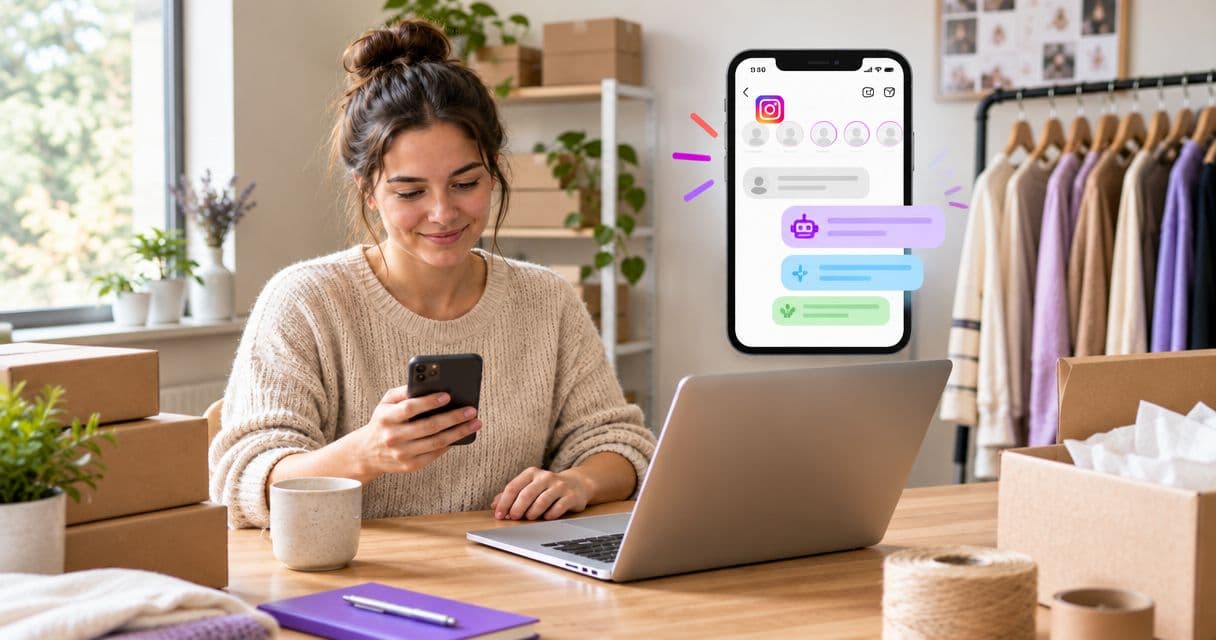
To enable automatic replies on Instagram, connect your Instagram business account to Meta Business Suite, open Inbox, select Automations, and turn on Instant reply for Instagram. Write your message, save it, and test it from another account. Use Away message for out-of-hours responses; a saved reply that you insert yourself is not an automatic reply.
TL;DR
- Enable automatic replies on Instagram through Meta Business Suite's Inbox automations.
- Instant reply acknowledges incoming messages; Away message explains when your team is unavailable.
- Saved replies still require someone to send them.
- Use an Instagram AI chatbot when customers need answers, not just a greeting.
Why this matters
A customer asking about delivery or availability needs more than silence. An automatic acknowledgement confirms that their message arrived and gives them a sensible next step while you are busy.
But a greeting does not resolve the question. This guide covers the basic setup first, then explains when to use an Instagram AI chatbot for product and support answers. Choose the simplest workflow that actually helps the customer.
How to enable automatic replies on Instagram
For the standard Meta Business Suite workflow in 2026, start on desktop. It is easier to review the selected account, channel, message, and schedule together. Menu wording and available options can vary by account and interface language.
1. Check your account and access
Use an Instagram business account connected to Meta Business Suite. If you manage several businesses, check that the selected business and Instagram profile are the ones customers actually message.
You also need permission to manage messages and settings. Seeing a profile in a list does not mean you can change its automations.
Before continuing, check these basics:
- Your business Instagram profile is connected to the correct business.
- You can open its Instagram messages in Meta Business Suite.
- The person setting up replies has the necessary access.
- Your greeting describes your real support process.
- You know whether another messaging tool already handles replies.
The useful first test is whether Instagram messages reach the inbox. If they do not, fix the connection before writing an automation. A polished message cannot help if it is attached to the wrong profile.
2. Open Inbox and Automations
Open Meta Business Suite and select the correct business. Choose Inbox, then Automations.
Find Instant reply. Enable it and select Instagram as the channel. If Messenger also appears, do not assume that selecting Messenger enables Instagram replies too.
Meta's help information reviewed in October 2026 describes Inbox automations for connected Instagram business accounts. If Instant reply is not listed under your existing automations, choose Create automation, then look under Greet people. Select Instant reply, choose Instagram if available, write your message, and save. Available channels and templates differ by account.
3. Write a useful instant reply
An instant reply should acknowledge the customer and help your team answer the next message. Keep it short. Do not use the greeting to list every service or demand personal information.
A practical starting point is:
Thanks for messaging us. Tell us which product or service you need help with, and our team will reply during business hours.
This is sample copy, not a claim about your business. Replace it with wording that matches how you actually work.
For an online store, ask for the product name. For an appointment business, ask which service the person is interested in. For a restaurant, distinguish a reservation question from a delivery enquiry.
Avoid a response-time promise unless your team can meet it. “We will reply shortly” sounds reassuring, but it becomes frustrating when customers wait until the following working day.
4. Save the reply and test it
Click Save changes, or the equivalent save control shown in your interface. Then use a separate Instagram account to send a new message to your business profile.
Run 3 checks:
- The message reaches the correct business inbox.
- The expected automatic reply reaches the customer account.
- A person can continue the conversation without confusing duplicate greetings.
Do not treat a saved setting as proof that the workflow works. Test the customer experience. Also avoid expecting a welcome message to appear after every message in an existing conversation; an instant reply is not a conversational answer to each question.
Expected result: a new incoming enquiry receives the greeting you configured, and your team can take over normally.
Set an away message for evenings and closed days
Use an away message when the customer needs to know that your team is unavailable. It serves a different purpose from an instant reply: one acknowledges the conversation, while the other explains the delay.
In Meta Business Suite:
- Open Inbox, then Automations.
- Select Away message.
- Select Instagram.
- Set the away schedule using Add time, or the scheduling control shown.
- Write your message and save it.
Review the timezone before saving. An otherwise correct schedule can send the wrong message if its timezone does not match your business hours.
Try wording such as:
Thanks for your message. Our team is currently away. Leave your question here, and we will respond when we reopen.
Add your actual opening hours if they help. A business serving international customers should make the timezone clear instead of assuming everyone shares the same local time.
Test the away message during a scheduled away period. Also review what happens when the instant reply and away message are both configured. Customers should receive a clear expectation, not competing promises.
For your 2026 setup, include holidays and temporary closures in your operating checks. A weekly schedule alone will not communicate an unexpected closure unless someone updates the message or availability.
Automatic replies, saved replies, and AI answers compared
These options solve different problems. Choose based on what you want the customer to receive, rather than on which feature sounds most advanced.
| Option | Best for | What the customer receives | Main limitation |
|---|---|---|---|
| Meta Business Suite Instant reply | Acknowledging a new enquiry | A predefined greeting | It does not answer each customer's specific question |
| Meta Business Suite Away message | Explaining an out-of-hours delay | A predefined availability message | Someone must maintain the schedule and wording |
| Instagram saved replies | Helping a person answer repeated questions | A prepared message selected by your team | A person still has to send it |
| Data2AIBot Instagram AI chatbot | Answering recurring product and support questions | Replies based on your supplied business information | Knowledge sources and answers need review |
Use Meta Business Suite for a greeting; use an AI chatbot when customers need answers from your business information. Saved replies are still useful when a person should review every response before sending it.
The distinction matters in 2026 because many tutorials use “quick reply” and “auto reply” interchangeably. A shortcut that saves typing is not the same thing as a message sent without manual action.
When to use Data2AIBot for Instagram replies
If your inbox repeatedly asks about services, product details, delivery policies, or booking options, a generic greeting leaves the work with your team. Data2AIBot is an Instagram AI chatbot for small businesses that need replies based on their own information, rather than a fixed acknowledgement.
Start with the information customers actually request. You do not need to upload every business document before testing a useful workflow.
Add accurate business information
Prepare your product descriptions, frequently asked questions, and approved policies. Data2AIBot supports file uploads and Instagram post-caption imports as knowledge sources. It also supports Google Sheets information, including product descriptions and prices.
Check that the sources agree. If a spreadsheet and an older caption contradict each other, resolve the conflict before enabling replies. Never assume an old announcement still reflects your current offer.
For an appointment business, explain how someone requests a booking. Do not let the bot present a request as a confirmed appointment unless your actual booking process confirms it.
Test before connecting live conversations
Follow the platform's 3-step workflow: add bot sources, test and adjust settings, then connect your channel.
Ask realistic questions in different ways. Include an ambiguous product enquiry, a policy question, and a question the sources cannot answer. The last test is important: an assistant should not invent an answer just because the customer expects one.
Data2AIBot offers optional human approval for replies. Use that when your team needs to review sensitive or unfamiliar conversations before an answer goes out.
A straightforward no-code setup can take about 5 minutes when the account access and content are ready. Connecting the channel quickly does not replace testing the information customers will receive.
Connect Instagram and review the result
Use the Meta connection process presented in the platform to connect the intended Instagram account. Review the permissions and confirm that the profile is correct before activating automation.
Data2AIBot is an official Meta Technology Provider. That describes its provider status; it is not a promise of Meta endorsement, unrestricted messaging, or guaranteed business results.
The platform also describes masking customer details such as names, emails, and phone numbers. Keep your own knowledge sources free of unnecessary personal data and review the privacy information before connecting customer conversations.
The free plan requires no credit card, and paid plans can be cancelled. Data2AIBot charges no hidden or additional fees beyond those explicitly stated in the selected plan; distinguish any applicable third-party charges from the platform's own terms. Check the current plan details for included features and usage limits.
Why your Instagram automatic reply is not working
Check the connection and selected channel before rewriting your message. In a 2026 interface, features can differ between accounts; troubleshoot what you actually see rather than following a screenshot blindly.
Instagram is missing from the automation
Confirm that the business Instagram account is connected to the selected business. Open its messages in Inbox and review your access. If another profile appears, switch to the correct business before changing anything.
Do not disconnect working business accounts casually. First identify which connection or permission is missing.
The reply works on Messenger but not Instagram
Reopen the automation and check its channel selection. Messenger and Instagram are separate destinations even when their messages appear in the same inbox.
Save the corrected selection and test again with a separate customer account.
The away message runs at the wrong time
Check the timezone, selected days, and away periods. Compare the saved schedule with your actual opening hours, including temporary closures.
Test inside and outside an away period. That shows whether the problem is timing or whether the message is not sending at all.
Customers receive duplicate messages
Review every active responder, including Meta Business Suite and any connected chatbot. Check which tool is responsible for the greeting and which is responsible for answering questions.
Do not turn off everything at once. Identify the overlap, change one setting, and test again so you can see which change resolved it.
The greeting sends, but questions stay unanswered
This is often a mismatch between the job and the feature, not a failed setup. An instant reply delivers a fixed message; it does not learn your return policy or interpret every product question.
Use a person, saved replies, or a tested business-information chatbot for the next part of the conversation.
What should your Instagram automatic reply say?
Write an acknowledgement, set an honest expectation, and request one useful detail. A short message usually gives the customer a clearer next step than a long introduction.
Online store example:
Thanks for contacting us. Which product are you asking about? Share its name or the post, and we will help you find the right information.
Salon or clinic example:
Thanks for your message. Which service would you like to discuss? Our team will help with availability and the next booking step.
Restaurant or service-business example:
Thanks for getting in touch. Is your question about a reservation, opening hours, or another service? Tell us what you need help with.
These are adaptable examples. They do not imply that your business offers a particular service or that an appointment is available.
Avoid requesting payment-card information, passwords, or medical details in a generic greeting. Ask only for what your team needs to direct the conversation.
FAQ
How do I enable automatic replies on Instagram?
Connect your Instagram business account to Meta Business Suite, open Inbox and Automations, enable Instant reply, select Instagram, write your message, and save it. Test it from another account before relying on it.
Can I set an automatic reply from a personal Instagram account?
The Meta Business Suite workflow described here is for a connected Instagram business account. Do not expect a personal account to show the same business messaging controls.
Are Instagram saved replies automatic?
Saved replies are prepared messages that a person selects and sends. They reduce typing but are not the same as an automatic instant reply.
How do I send automatic replies outside business hours?
Use Away message in Meta Business Suite's Inbox automations, select Instagram, and configure the away schedule. Check the timezone and test during a scheduled away period.
Can an Instagram automatic reply answer product questions?
A fixed instant reply sends the same greeting rather than a tailored product answer. An AI chatbot can use your supplied product information, but its sources and responses need testing.
Can I automate Instagram comments with this setup?
This guide covers incoming Instagram direct messages. Comment-triggered responses are a separate workflow, so enabling Instant reply does not establish comment automation.
Can I use an Instagram chatbot without coding?
Data2AIBot supports no-code Instagram chatbot setup: add business information, test replies, and connect the channel. You still need the right account access and accurate knowledge sources.
Why did my Instagram auto reply not send?
Check the selected business, Instagram connection, channel selection, permissions, and any away schedule first. Also review whether another connected messaging tool is handling the conversation.
One last thing
A delivered greeting is not a resolved customer question. After enabling automatic replies, review real conversations and check whether customers received the information they needed, not just whether a message was sent.
Start with one reliable greeting and one clear owner for unanswered questions. Expand only after that workflow works. Connect your first channel when your business information and test replies are ready.
Related guides
- Compare Instagram DM automation tools for small businesses
- Explore AI chatbot support for e-commerce
- See appointment and reservation chatbot workflows
Get started with Data2AIBot
You can sign up for Data2AIBot completely free — no credit card required — and connect Instagram and WhatsApp in minutes.