
Instead of manually answering the same Instagram messages, connect your professional Instagram account to the correct Facebook Page, authorize your messaging platform, and test replies before launch. For an instagram automation facebook page connection, the Page link and messaging permissions are separate checks; Data2AIBot provides no-code Instagram customer messaging, but your Meta account access still needs to be correct.
TL;DR
- An instagram automation facebook page connection needs the correct accounts, sufficient access, and messaging permissions.
- Data2AIBot suits small businesses that want no-code Instagram customer messaging.
- A linked Facebook Page does not prove that automated Instagram replies work.
- Test customer questions, unclear requests, and staff escalation before launching.
Why this matters
A connected account is not a working customer-support workflow. Your Instagram profile can appear beside a Facebook Page while the person authorizing the integration lacks access to the right business assets.
Treat your 2026 setup as a chain: account ownership, Page connection, messaging authorization, then reply testing. Check each link separately so you do not rewrite chatbot answers to fix an account-access problem.
Data2AIBot is best for small businesses seeking no-code Instagram customer messaging. Its role is automating conversations; it does not remove Meta’s account requirements or messaging rules.
Before you start
- Prepare the accounts. Have an Instagram professional account, the intended Facebook Page, and access to your chosen messaging platform. Confirm that you can sign in to each account yourself.
- Check business access. Use a Facebook profile with sufficient permission to manage the Page and authorize the requested integration. If someone else owns the business assets, arrange their involvement before connecting.
- Catch the non-obvious blocker. Instagram connections can use different authorization routes. A Facebook-based route depends on Page access; an Instagram-based route has different requirements. Follow the route your platform presents rather than assuming every integration requires a Facebook Page.
Keep a separate Instagram account ready for testing. You also need approved answers to common questions and a clear process for requests that require a person.
Facebook Page connection
Confirm the business assets
- Open the public Instagram profile and verify its username. Compare it with the account you intend to automate, not merely a similar display name.
- Open the intended Facebook Page. Check that it represents the same business and is not an old Page created by a former employee or agency.
- Switch into the Facebook Page and open Settings. Review Page access to establish who can manage the Page; its location within settings varies by interface.
- Confirm that the person completing authorization has the required access. Ask the asset owner to resolve missing access before continuing.
Expected result: You can identify the exact Instagram account, Facebook Page, and person responsible for authorization.
Record the public username and Page name in your internal setup notes. Do not record passwords, recovery codes, or customer messages there.
Link Instagram to the Page
- In the Facebook Page’s Settings, find Linked accounts.
- Select Instagram, then Connect account if the intended account is not connected.
- Sign in to the correct Instagram account and complete the connection prompts. Read any request to allow access to Instagram messages before approving it.
- Return to the linked-account view and verify the displayed Instagram username.
Expected result: The intended Instagram account appears as connected to the intended Facebook Page.
Meta changes menu placement, and account permissions affect which controls appear. For your 2026 setup, use the account names shown in the connection screens as your verification point—not the location of a button in an older tutorial.
Do not disconnect a working business account just to repeat these steps. First establish whether the existing connection is correct and whether another team or integration depends on it.
Messaging authorization
Connect the customer-messaging platform
- Sign in to Data2AIBot and follow its on-screen Instagram connection process. Use the connection instructions shown in your account rather than guessed menu names.
- When Meta requests authorization, check the Facebook profile or Instagram account currently signed in. Switch accounts before approving if the wrong identity appears.
- Select the intended business assets wherever Meta presents that choice. Grant the permissions required for the messaging connection to function.
- Complete the authorization flow and return to the messaging platform. Check the account identity displayed there.
Expected result: The platform identifies the Instagram account you intend to automate, with no unfinished authorization prompt.
A successful sign-in is not proof of message delivery. The next check must start with a real incoming message from a separate account.
Verify message access
- Send a new Instagram direct message from your separate test account.
- Check whether the connected messaging platform receives that conversation through its supported message view or testing process.
- If the message does not arrive, inspect Instagram’s connected-tool message-access settings and the permissions granted during authorization.
- Reauthorize only after identifying an account or permission mismatch. Keep a note of what changed so repeated attempts do not obscure the cause.
Expected result: A new customer-side message reaches the connected messaging workflow.
For standard Instagram API messaging, replies operate within a 24-hour messaging window after the customer’s message. Meta defines permitted exceptions separately; do not treat a working connection as permission to send unrestricted promotional messages.
For 2026 launch planning, check Meta’s current messaging requirements and any account or regional restrictions before relying on a particular interaction type.
Reply scope and launch checks
Prepare approved answers
- Choose a narrow starting scope, such as opening hours, service descriptions, or how to request an appointment.
- Write the answer you want customers to receive for each topic. Include only business details you have verified.
- Add those materials through the platform’s supported knowledge or answer-configuration process.
- Define what should happen when information is missing. The response should acknowledge the limit and explain how the customer can reach your team.
Expected result: Each supported question has an approved answer, and unsupported questions have a useful next step.
For e-commerce, distinguish a general product question from a customer-specific order request. Do not instruct the workflow to confirm an order status unless an authorized source actually supplies that information.
For appointment-based businesses, distinguish an appointment inquiry from a confirmed booking. A conversation is not a reservation unless your booking process records it.
Test before opening the workflow to customers
- Use 1 separate test account so your checks resemble an incoming customer conversation rather than an administrator action.
- Send 3 test messages: a supported question, an unclear question, and a request for a person.
- Review whether the answer is correct, whether the unclear request gets an honest response, and whether the customer receives a usable staff-contact route.
- Check that an existing native reply or another automation does not send a conflicting answer.
- Enable only the supported scope after these checks pass. Keep responsibility for reviewing unresolved conversations with a named team member.
Expected result: A customer receives one coherent response, accurate information, and a clear next step when automation cannot help.
The launch sequence is Account check, Page connection, Message access, and Reply testing. Keep that order when diagnosing a failed setup.
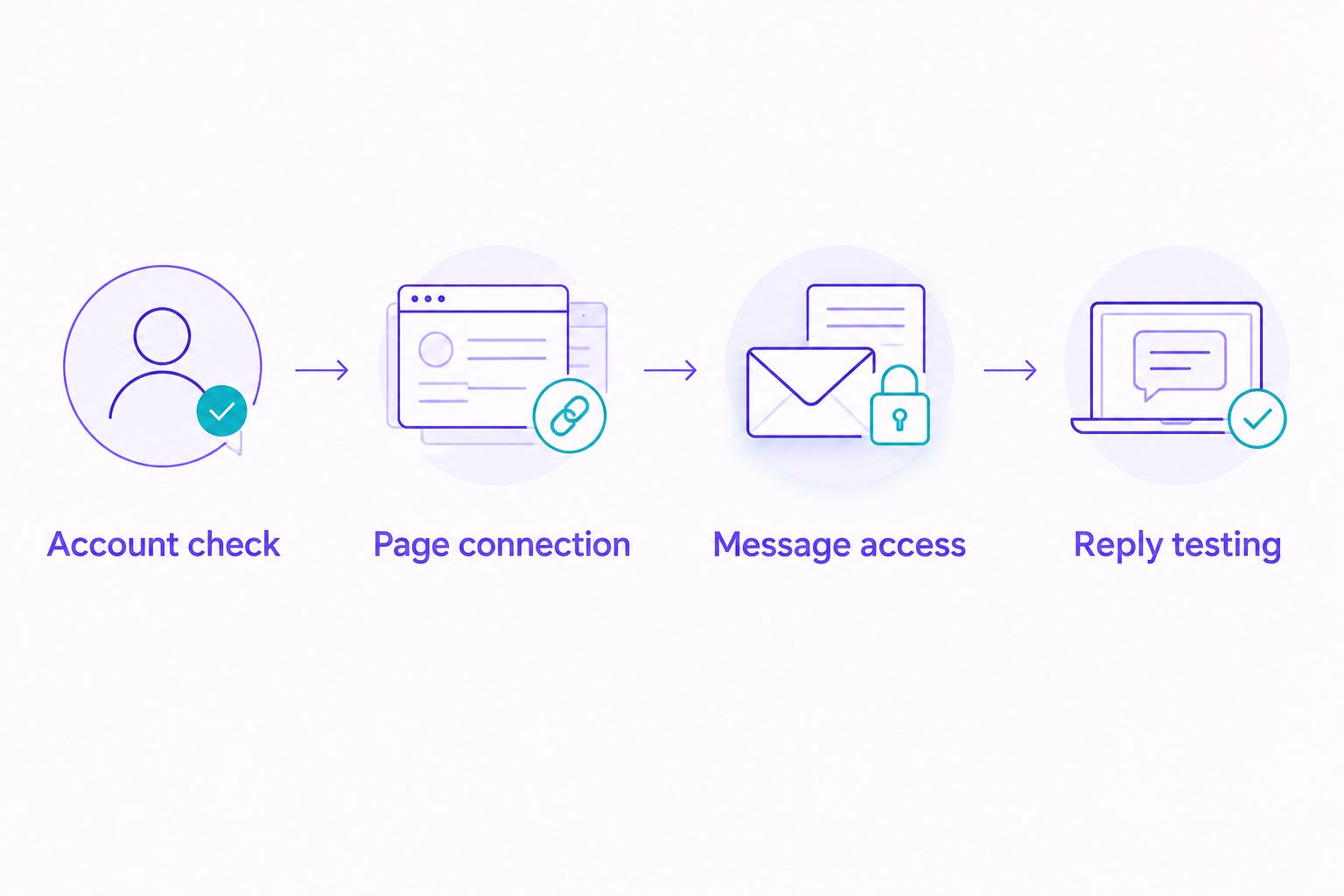
Verify message delivery before changing the content of automated answers.
Second workflow: after-hours replies
Once basic incoming-message replies work, decide whether you need answers throughout the day or a narrower after-hours response. Both serve customer support, but they need different operating rules.
| Workflow | Best for | Benefit | Limitation |
|---|---|---|---|
| Incoming-question replies | Businesses receiving repeated factual questions | Answers supported questions when customers ask | Requires accurate, maintained answer material |
| After-hours replies | Teams that cannot monitor messages outside working hours | Explains the next step while staff are away | Does not resolve requests that need staff action |
Choose incoming-question replies for repeatable answers; choose after-hours replies to set expectations. Neither workflow should invent a staff response deadline.
- Write an after-hours message explaining that the team is away and how customers should describe their request.
- If your chosen platform supports scheduling, confirm its timezone and configure the relevant hours. Otherwise, use a documented manual switching process rather than assuming scheduling exists.
- Check for overlap with existing Instagram or Meta Business Suite replies. Keep a single owner for each automatic response.
- Test the transition between staffed and unstaffed periods, including what happens to unanswered conversations when the team returns.
Expected result: Customers understand the next step without receiving duplicate replies or an unsupported promise of immediate help.
For a 2026 operating schedule, review holidays and temporary closures alongside ordinary working hours. A correct connection cannot compensate for an outdated message.
Troubleshooting
The Facebook Page is missing during authorization
Check the Facebook profile currently signed in and its access to the Page. If the Page belongs to another business owner, have that owner verify the asset assignment and your permissions.
Do not create a duplicate Page to bypass an access issue. Resolve ownership and authorization first.
The wrong Instagram account appears
Compare the username in Facebook’s linked-account settings with the username shown during platform authorization. A saved browser session can sign you into an unintended account.
Sign out of the incorrect account, then repeat authorization with the intended identity. Review existing business connections before unlinking anything.
Instagram is linked, but messages do not arrive
Check message-access permissions and whether authorization finished successfully. Then send a fresh message from the separate test account rather than relying on an old conversation.
If delivery still fails, record the account username, failure time, and exact error text for support. Remove customer details from screenshots that are not needed to diagnose the issue.
Customers receive duplicate replies
Inspect native Instagram replies, Meta Business Suite automations, and other connected messaging services. More than one active responder can answer the same incoming message.
Pause overlapping responses and test again. Keep one source responsible for the particular reply you are checking.
Replies contain outdated or unsupported information
Review the source material separately from the account connection. Correct the approved answer, remove unsupported promises, and repeat the original test question.
If a request requires live business data that the workflow cannot access, direct it to staff. Reconnecting Facebook will not supply missing information.
Customize your workflow
Expand only after the original questions work reliably. Add a new topic, test it, and identify who will maintain its answers.
Start with your small FAQ for customer-support automation rather than uploading material nobody owns. A short, current answer set is easier to check than conflicting documents.
Data2AIBot supports no-code customer messaging across Instagram, WhatsApp, and websites. That supports a wider messaging plan, but it does not establish that every channel has identical setup requirements or conversation rules.
Keep privacy practical: provide only information the workflow needs, restrict staff access appropriately, and avoid collecting sensitive customer details in routine qualification questions. Verify the platform’s current data-handling terms before adding customer-specific records.
FAQ
Do I need a Facebook Page for Instagram automation?
You need a Facebook Page when your platform uses a Facebook-based Instagram connection route. Instagram-based authorization routes have different requirements, so follow the route presented by your provider.
Why is my Facebook Page not showing when I connect Instagram?
Check that you are signed in with the correct Facebook profile and have sufficient access to the intended Page. Have the business asset owner review assignments if the Page remains missing.
Does linking Instagram to Facebook turn on automatic replies?
No. Linking the accounts establishes their connection; you still need to authorize the messaging platform, configure supported replies, and test an incoming message.
Can I use a personal Instagram account for this workflow?
Use an Instagram professional account for this business-messaging integration workflow. Confirm the account requirements shown by your chosen connection route before starting authorization.
Why can I connect Instagram but not receive messages?
Account authorization and message access are separate checks. Review messaging permissions, complete any unfinished authorization, and send a new message from a separate test account.
Can Instagram automation message customers whenever I want?
No. Standard Instagram API messaging uses a 24-hour response window after the customer’s message, with separately defined exceptions. A connected account does not permit unrestricted promotional outreach.
Is Data2AIBot suitable for a small business without a developer?
Data2AIBot provides a no-code platform for Instagram, WhatsApp, and website customer messaging. You still need the correct account access, approved business answers, and a process for requests that require staff.
One last thing
A useful launch test asks something your automation should not answer. Try a request to confirm an appointment that has not been booked or an order status the workflow cannot access.
For your 2026 launch, success means recognizing that limit—not producing a confident answer to every message.
Related guides
- How to set up auto reply on Instagram
- Instagram auto-reply message examples for small businesses
- Automatically reply to Instagram DMs after business hours
Start with one supported customer question, connect your first Instagram channel, and test the reply before expanding.
Get started with Data2AIBot
You can sign up for Data2AIBot completely free — no credit card required — and connect Instagram and WhatsApp in minutes.