
Do you need to acknowledge incoming messages, or answer customers’ questions without making them wait? That is the first decision in setting up WhatsApp Business auto-reply: use the app’s built-in tools for simple acknowledgments, and consider a chatbot when replies need to change with the question.
In short
- Open Business tools in WhatsApp Business to configure greeting and away messages.
- Set the message, schedule, and recipient rules—not just the wording.
- Quick replies are saved responses you select and send; they are not an automatic chatbot.
- Test from another number that meets the relevant trigger conditions.
- Move to knowledge-based AI answers when product, delivery, and appointment questions require more than a fixed message.
How to set up WhatsApp Business auto-reply
First, check that you are using WhatsApp Business, not the standard WhatsApp app. These instructions cover the Business app’s built-in messaging tools. Automation through the WhatsApp Business Platform/API follows a separate setup process.
Menu labels and locations can vary by operating system, language, and app version. On Android, look under the three-dot menu; on iPhone, check Settings or the relevant business section for Business tools.
1. Check your business profile and opening hours
- Open WhatsApp Business.
- Find your business profile under Business tools.
- Update your operating days and hours.
- Check your description and contact details.
Separate store opening hours from messaging support hours where necessary. If your shop closes at 8 p.m. but your support team leaves at 6 p.m., explain that difference in the message. Customers need to know when someone can answer, not just when the premises are open.
Avoid promising a five-minute response unless your team can consistently deliver it. A realistic expectation is more useful than an impressive but unreliable commitment.
2. Turn on the greeting message
- Open Greeting message in Business tools.
- Enable the option to send a greeting.
- Write a short introduction.
- Choose the recipients.
- Save your settings.
The greeting generally applies when a customer first messages you or returns after about 14 days of inactivity. It is not a reply to every incoming message. Check the trigger explanation in your app before testing repeatedly from an existing conversation.
A useful greeting identifies the business and asks for one helpful detail. Avoid turning it into a brochure with multiple offers, links, and instructions. Its job is to make the next message easier to write.
3. Configure the away message and schedule
- Open Away message in Business tools.
- Enable away messaging.
- Enter your response.
- Choose an available schedule, such as always sending, a custom schedule, or outside business hours.
- Review the recipients and save.
The outside-business-hours option depends on the hours in your business profile. A custom schedule may suit a holiday or temporary closure better. Be careful with an always-on setting: it can tell customers you are unavailable while your team is actively replying.
For app-based away messages, check the phone’s internet connection as well. Saving the settings does not remove connection requirements or override the schedule and recipient conditions.
4. Create quick replies for recurring questions
- Open Quick replies in Business tools.
- Add a new response.
- Write an answer covering one topic.
- Assign a memorable shortcut, such as
/delivery. - Select the shortcut in a conversation, edit if needed, and send.
Quick replies are not automatic answers. If a customer asks about shipping, the app does not independently select your delivery response. A team member still chooses and sends it. This reduces typing without automating question recognition.
Copy-ready messages and example conversations
Replace the bracketed details below before using these templates. Verify every opening time and service commitment. Ask only for information that helps move the conversation forward.
Greeting message example
Hi, thanks for contacting [business name]. Which product or service can we help you with? Please share the product name or link if you have one.
Example conversation:
Customer: Hi, I have a question about a product.
Business, automatic greeting: Hi, thanks for contacting [business name]. Please share the product name or link if you have one.
Customer: What are the dimensions of the desk lamp?
The greeting has now completed its job. Your team or a separately configured chatbot needs to answer the dimensions question. Asking for a product name does not give the built-in greeting tool product knowledge.
Away message example
Thanks for your message. Our WhatsApp support hours are [days and times, including time zone if relevant]. We will review your message during our next working period. Please leave your question and the relevant product name.
Example conversation:
Customer: If I order tonight, when will it ship?
Business, automatic away reply: We are outside our support hours. We will review your message during our next working period.
This avoids silence but leaves the shipping question unanswered. If customers repeatedly wait for the same basic information, improve the scope of the automation rather than simply rewriting the acknowledgment.
Quick reply example
Shortcut: /appointment
Which service, date, and time range would you prefer? We will check availability before confirming your appointment.
Keep requests separate from confirmations. A customer naming a preferred time does not mean the appointment is booked. If availability has not been checked, your message should not imply that a slot is reserved.
How to test your auto-replies before launch
Use a different phone number for testing. An existing conversation may not qualify for a first-contact greeting. Check not only the wording, but also whether the right person receives it at the right time.
- Greeting: Send an initial message from an eligible number that has not contacted the business before.
- Schedule: Test the away reply during the configured period.
- Recipients: Check that included and excluded contacts behave as intended.
- Quick reply: Select a shortcut and confirm you can review the text before sending.
- Overlap: Check whether greeting and away conditions create unnecessary repetition.
- Content: Review hours, links, spelling, and any remaining placeholders.
Keep a simple record of the test time, expected response, and actual result. That makes troubleshooting more effective than changing settings at random. Also try questions such as “Are you open now?” and “Are you open tomorrow?” to expose where a fixed response stops being useful.
Built-in messages or an AI chatbot?
Message volume is only one decision factor. Even a small inbox can become time-consuming if every conversation switches between product details, delivery policies, and appointment requests.
| Option | What it does | Best suited to | Main limitation |
|---|---|---|---|
| Greeting message | Sends a fixed introduction under eligible conditions | Starting conversations | Does not answer based on the question |
| Away message | Sends fixed text on a schedule | Setting response expectations | May leave the actual question unresolved |
| Quick reply | Lets staff select saved text | Reducing repetitive typing | Requires someone to select and send it |
| AI chatbot | Uses supplied knowledge to answer different questions | Product, service, and appointment inquiries | Needs current information and testing |
Decision rule: If the problem is “customers need to know we received their message,” start with the built-in tools. If it is “customers need information without waiting,” evaluate a WhatsApp AI chatbot.
Review a week of conversations first. Separate simple acknowledgments from questions requiring useful information. This gives you a concrete reason to keep the current setup or expand it.
Moving to broader answers with Data2AIBot
This is a separate chatbot setup, not another switch inside the WhatsApp Business app. Data2AIBot offers no-code setup to connect Instagram and WhatsApp in a few steps and launch in minutes. Check your account and number requirements before connecting.
1. Connect the WhatsApp channel
Start the WhatsApp connection in Data2AIBot’s channel setup and follow the on-screen authorization instructions. Data2AIBot is an official Meta Technology Provider, a relevant consideration when evaluating channel connection and provider trust.
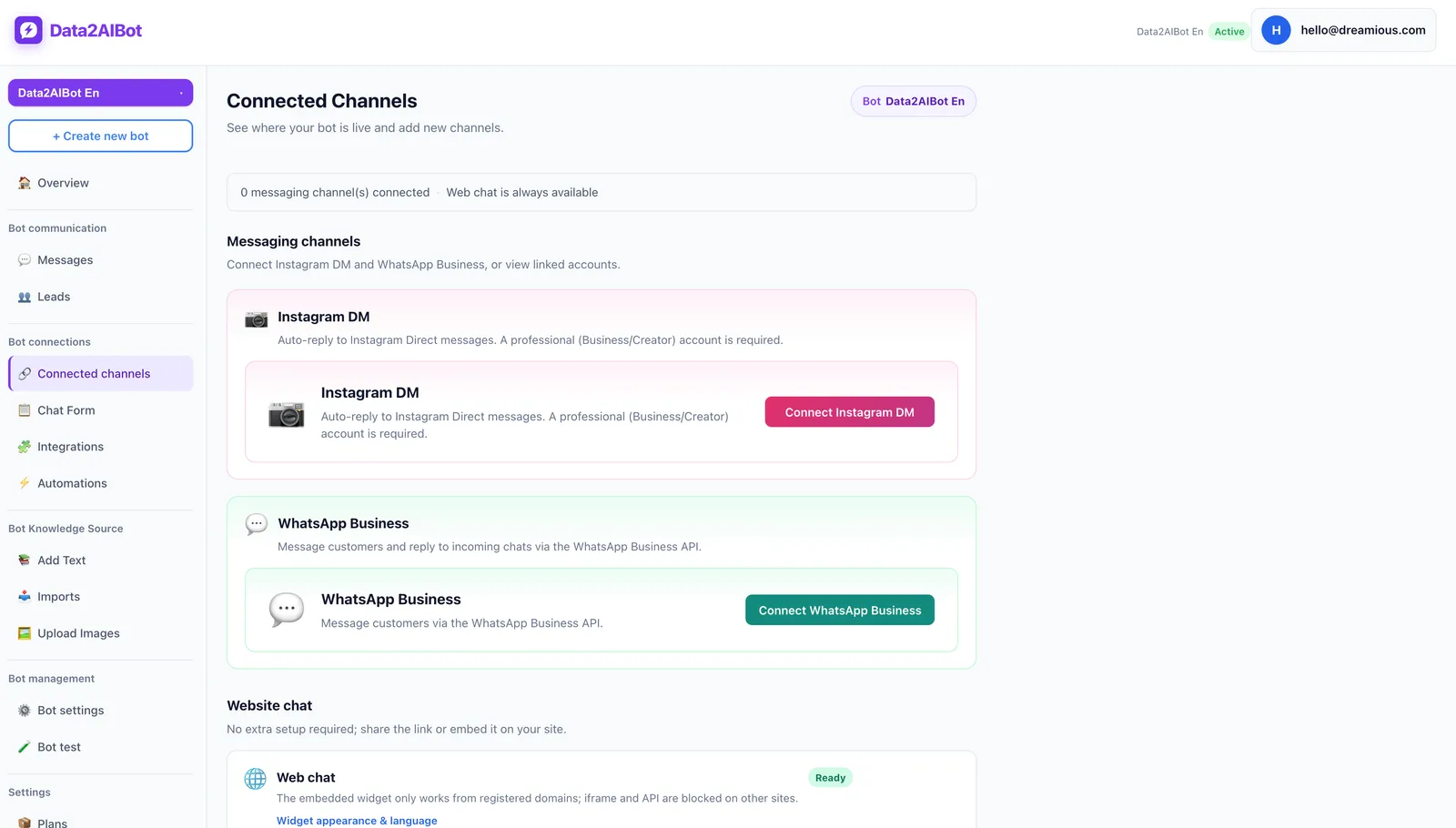
If you also use Instagram, plan both channels together. One Data2AIBot bot can handle Instagram and WhatsApp, with a unified inbox approach to multi-channel conversations.
Do not assume your existing number can continue operating in exactly the same way. Verify the supported connection options, any migration requirements, and potential effects on ongoing customer communication before making changes.
2. Prepare the knowledge the bot should use
Start with a focused set of information: opening hours, product specifications, delivery policies, returns, and appointment procedures. Resolve conflicting documents first. An outdated price list should not compete with the current version.
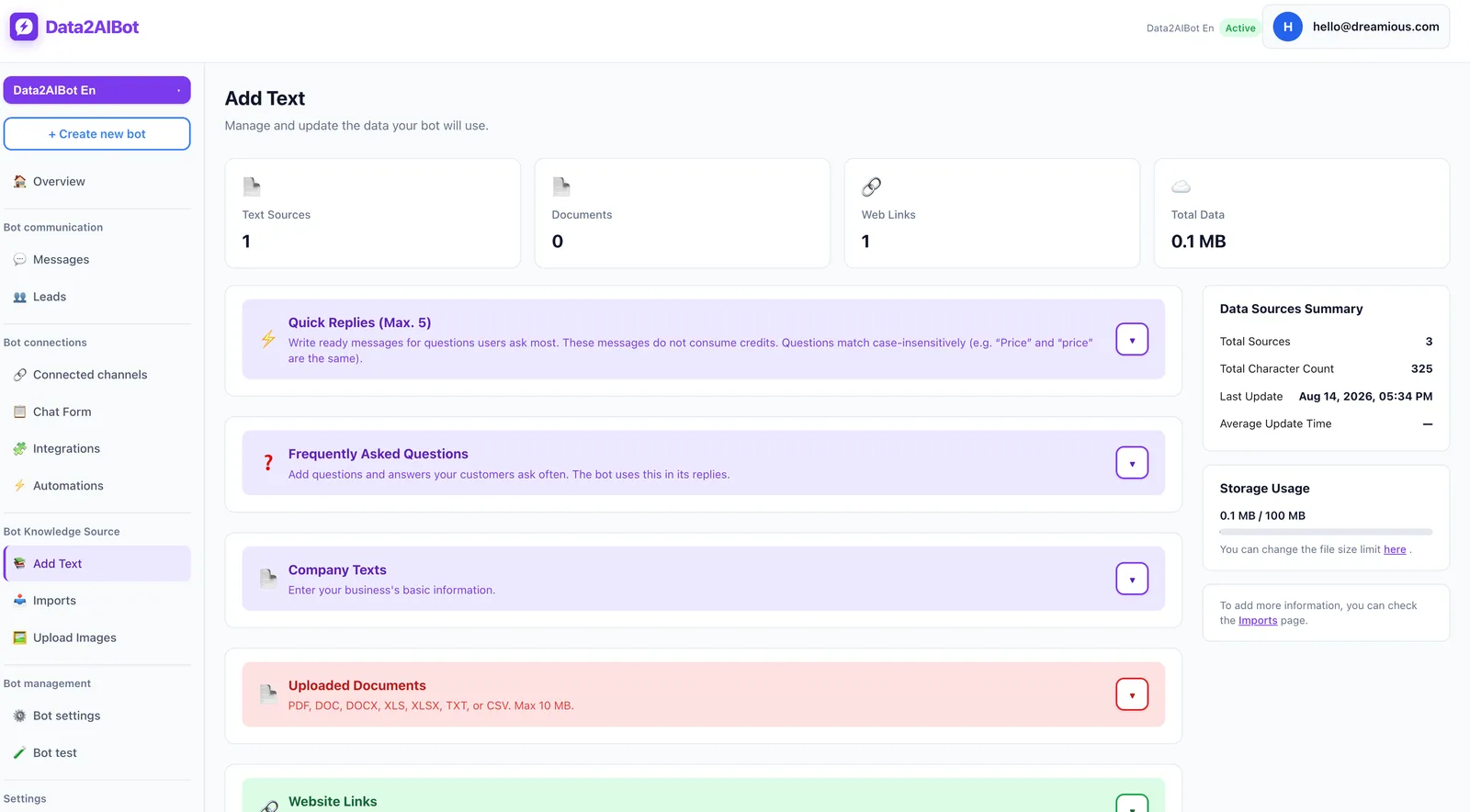
Data2AIBot supports file uploads and Google Docs and Google Sheets imports. Ecommerce catalogs can use spreadsheet column mapping. Assign someone to keep each source current rather than treating knowledge preparation as a one-time task.
A delivery policy is not live order tracking. Uploading that policy does not mean the bot knows where an individual parcel is. Similarly, catalog information alone should not be treated as confirmation of real-time stock availability.
3. Test the scope with actual customer questions
Prepare 15–20 representative questions from past conversations, removing personal information. Include short or incomplete variations: “shipping time,” “will it arrive tomorrow,” and “Saturday delivery?” express related but different needs.
Check three things separately:
- Is information from the source represented accurately?
- Does missing information lead to an unjustifiably definite answer?
- Does the customer receive a clear next step?
Data2AIBot can collect appointment and reservation requests in chat and supports a Calendly automation. Still, test exactly when a request becomes a confirmed appointment in your configured workflow. Do not leave that distinction to assumption.
4. Review visitors and conversations
After setup, review the visitors and leads list and look for recurring gaps in conversations. Do not treat every visitor as a qualified sales lead. A general product question, a pricing inquiry, and a booking request indicate different levels of intent.
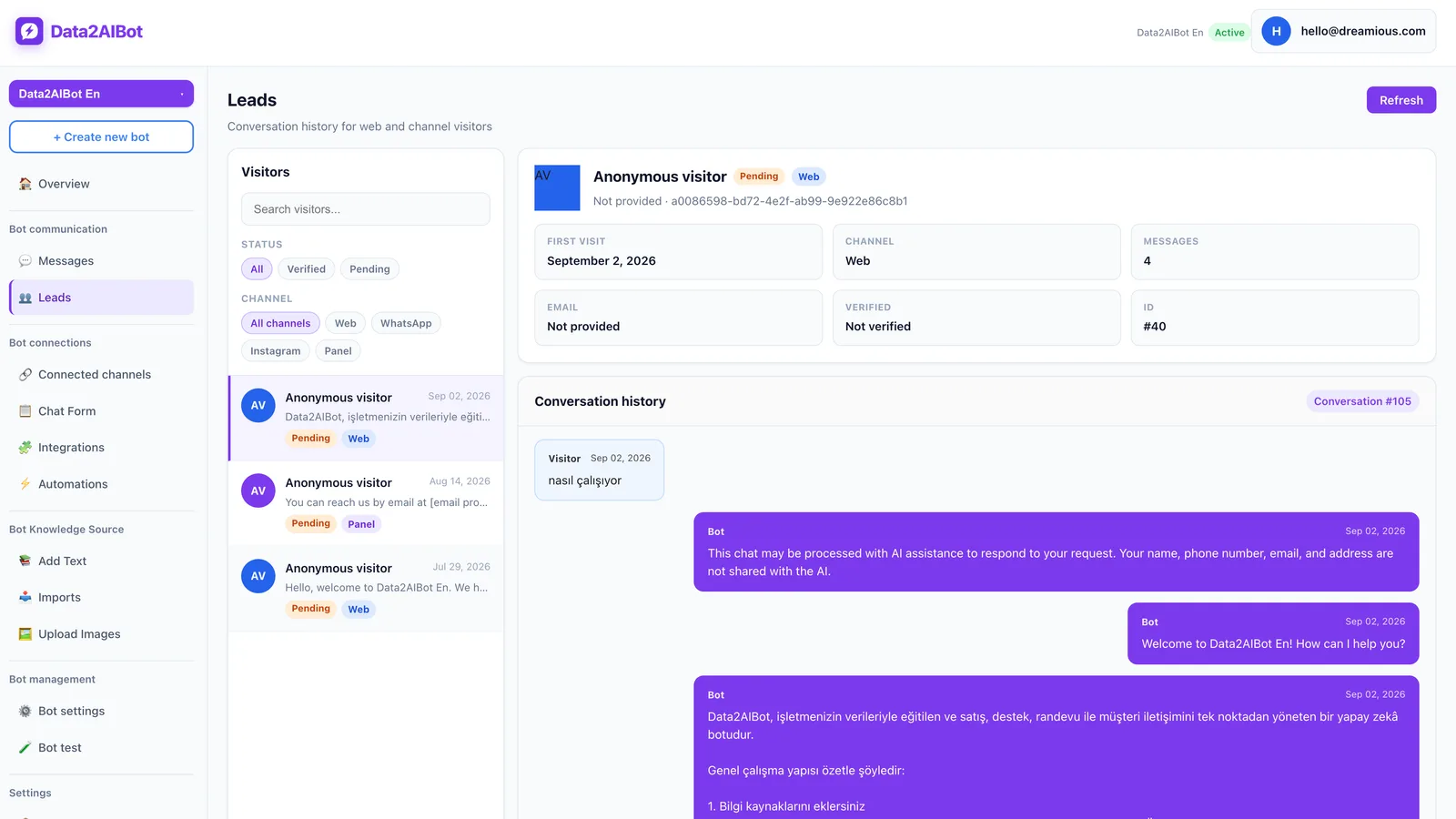
The goal is not simply to count people. Identify unanswered questions and outdated information. You can use the 14-day trial, with no credit card required, to run this review cycle: Start Data2AIBot for free.
What about platform rules and customer data?
Keep the Business app’s messaging tools separate from Business Platform/API rules. On the Platform, business-initiated messages outside the customer service window generally require approved templates. The standard service window lasts 24 hours from the customer’s latest message. Verify current Meta requirements during setup.
A support inquiry is not blanket permission for unlimited marketing messages. Check consent requirements and the rules for the intended message category. Design support automation and promotional outreach as separate processes.
Do not put customer passwords, payment card details, or unnecessary personal information into the bot’s knowledge sources. Define what you genuinely need for an appointment request. For issues requiring staff review, provide a workable contact route rather than promising an automatic handoff you have not configured and verified.
What should you measure in the first week?
An automatic message being sent is not the same as a question being resolved. If a customer receives a greeting and repeats the question three times, the main need is still unmet. A small manual review sample is useful at the start.
- Resolution: Did the customer get the information they needed?
- Repetition: Did they have to ask the same question again?
- Accuracy: Were the hours, prices, and policies current?
- Progress: Did the conversation advance toward a product choice or appointment request?
- Workload: Did staff spend less time typing the same explanations?
Fix a few recurring gaps each week. Improve information quality before broadening the scope. Sending an incorrect answer to more customers is not a successful automation outcome.
Common setup mistakes to avoid
The most common mistake is treating a greeting as a chatbot. Adding “Reply 1 for prices” does not create a working menu in the built-in app. Only use that instruction if a separate, functioning workflow responds to the choice.
Another mistake is making definite promises without verification. “Your appointment is booked” and “It will arrive tomorrow” require more than a generic policy. Keep general business information separate from an individual customer’s transaction status.
Finally, revisit settings after holidays and temporary closures. An old away message, outdated hours, or a broken link can turn a previously useful setup into a source of confusion.
Frequently asked questions
Is WhatsApp Business auto-reply free?
The Business app’s greeting, away message, and quick reply tools do not require a separate chatbot subscription. Platform/API-based services are different: review the provider’s terms and any applicable Meta charges separately.
Can I set up auto-reply in regular WhatsApp?
The built-in business tools covered here belong to WhatsApp Business, not the standard WhatsApp app. Choose the appropriate app for your needs. Assess account security and WhatsApp’s terms before relying on third-party automation tools.
Why is my WhatsApp Business auto-reply not working?
Check that the message is enabled, then review the schedule, recipients, and internet connection. Greetings do not trigger on every message. Your test conversation may not meet the first-contact or inactivity conditions.
Can I use a greeting and an away message together?
Yes, they serve different purposes and can both be configured. Their conditions may overlap, however. Test what a new customer receives outside business hours and remove confusing or repetitive wording.
Are WhatsApp quick replies sent automatically?
No. A quick reply is saved text that you select and send during a conversation. Automatically interpreting a customer’s question and choosing an answer requires a separate automation setup.
Can WhatsApp auto-reply answer pricing questions?
A fixed message can contain general pricing information, but it does not select the right price for a particular product question. A knowledge-based chatbot can support that broader use case, provided the pricing source is current and the question is sufficiently clear.
Can I use my existing WhatsApp number with a chatbot?
It depends on the number’s current registration and the supported options available during connection. Do not assume app and Platform/API coexistence is available for every setup. Confirm eligibility, continuity of customer communication, and any migration steps before proceeding.
Get started with Data2AIBot
You can sign up for Data2AIBot completely free — no credit card required — and connect Instagram and WhatsApp in minutes.