

Want faster Instagram DM responses? First decide whether you need a reusable message your team sends, an automatic acknowledgment, or an answer that changes with the customer’s question. These are different jobs, and choosing the right approach makes setup much easier.
In short
- Saved replies are reusable text, not automatic responses: a person generally selects and sends them.
- For welcome and away messages, check the automations available to your account in Meta Business Suite.
- For varied product, delivery, or appointment questions, consider an AI chatbot grounded in your business information.
- Confirm account access and messaging permissions before writing your responses.
- Test from another Instagram account and avoid running two welcome automations at once.
Which Instagram auto-reply method should you use?
Start with the outcome, not the software. A message saying “We received your DM” does not do the same job as an answer explaining your returns policy.
| Method | How the reply is sent | Best starting use | Main limitation |
|---|---|---|---|
| Saved reply | A team member selects and sends stored text | Repeated short explanations | Does not send automatically by itself |
| Built-in automation | An available trigger sends a fixed message | Welcome and away messages | Does not explain every individual question |
| AI chatbot | Uses supplied information to generate a relevant response | Product questions, FAQs, appointment inquiries | Requires accurate sources and testing |
If you repeatedly type your store address, start with a saved reply. If customers need acknowledgment while your team is busy, use a welcome automation. If they ask about several products or policies in different ways, evaluate an AI chatbot.
You can combine these approaches. Your team might use saved replies while a bot handles initial questions. What matters is assigning each job clearly so the customer does not receive overlapping or contradictory messages.
Before you start: Check access and prepare your information
Have these five things ready:
- Account access: Sign in as someone authorized to manage the Instagram account and relevant business assets. Check whether the account is professional; some messaging tools are unavailable on personal accounts.
- Connections: If using Meta Business Suite, confirm that the intended Instagram account appears in your workspace. If setup requests a Facebook Page connection, choose the correct Page.
- Messaging permissions: Review the permissions requested during connection. An account can appear connected while missing access needed to process messages.
- Business information: Gather opening hours, delivery terms, return policies, contact details, and common questions.
- An owner: Decide who will correct outdated content and review problematic replies.
Menu names and availability can vary by account type, region, app version, and Meta updates. Treat the navigation below as a guide to the relevant functions, not a guarantee that every account has identical screens.
Keep your initial scope small. Five common questions are enough to discover whether you need a faster typing workflow, a basic acknowledgment, or conversational answers.
1. Create saved replies for repetitive messages
Saved replies are often confused with Instagram auto-reply. The distinction is straightforward: Instagram stores the text, but a person generally decides when to send it.
Set up a saved reply
- Open the menu on your Instagram profile.
- Look under professional or business tools for Saved replies. Some accounts also offer access from the DM composer.
- Create a reply and add a memorable shortcut if that option appears.
- Save it, then select it inside a conversation to check the inserted text.
- Edit customer-specific details before sending.
Example saved reply
Hi! Delivery options can vary by location. Which product are you interested in, and what area would we be delivering to?
This collects useful information without making an unsupported delivery promise. Avoid storing claims such as “Guaranteed tomorrow” unless your team can verify them before sending.
Store directions, size-guide explanations, and the first steps of a return are good candidates. Live inventory, personalized quotes, and individual order status usually require additional checking.
Checkpoint: Send your business a DM from another account. If no reply arrives automatically, that is expected: saving text does not activate an automated response.
2. Set up a welcome or away message in Meta Business Suite
If the immediate goal is acknowledgment, check the built-in options first. A short, accurate message can set expectations without requiring a full chatbot workflow.
Configure an available automation
- Open Meta Business Suite and select the correct business workspace.
- Go to Inbox and confirm that Instagram messages appear there.
- Open Automations, or the equivalent messaging settings available in your interface.
- Look for Instant reply or Away message, if offered for your account.
- Check that Instagram is included in the channel selection. A Messenger-only setting will not cover Instagram DMs.
- Write the response. If scheduling is available, verify your business hours and time zone.
- Save and enable the setting, then test from a separate Instagram account.
Welcome message example
Hi, thanks for your message! Please share your question or the product you’re interested in so we can help.
Away message example
Thanks for getting in touch. Our team is currently offline and will review your message when we return. You can leave the details here in the meantime.
Add your actual business hours if useful. Avoid promising a response time your team cannot consistently meet. An instant acknowledgment should not imply that a person is already handling the request.
What if the option is missing?
Check the selected workspace, Instagram connection, and your management permissions. Desktop and mobile interfaces may expose different options. If the feature is unavailable to your account, work with the tools you actually have rather than relying on instructions for another account type.
Also check the trigger’s behavior. A welcome automation may not reply to every message in a conversation. Test both the first DM and a follow-up before deciding that it is working—or broken.
3. Set up AI-powered Instagram auto-reply
Fixed messages become limiting when customers phrase questions differently or ask several things at once. An AI approach aims to answer the question using business information, rather than sending the same paragraph to everyone.
Data2AIBot is an AI chatbot for Instagram, WhatsApp, and websites. The steps below describe the setup process without assuming specific button labels or undocumented controls.
Step 1: Open your workspace
Create an account and review the chat and assistant workspace. You can Start Data2AIBot for free with a 14-day trial. No credit card is required to start, and you can cancel anytime.
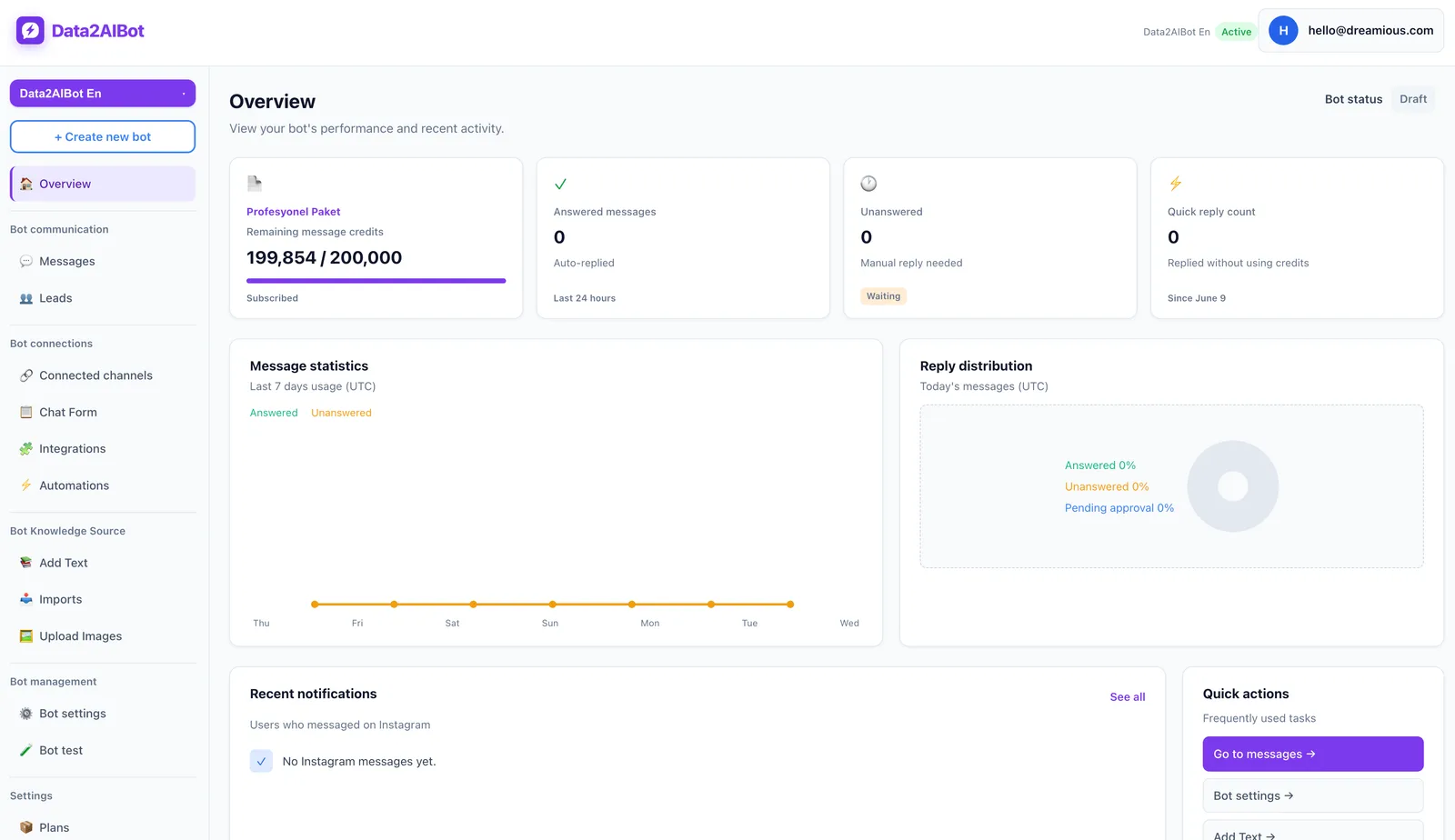
Define the first use case in one sentence, such as “Answer Instagram questions about our products and delivery policy.” A clear boundary makes it easier to choose information sources and judge whether replies are useful.
Step 2: Connect Instagram
Start the Instagram connection flow in the channels area. During Meta authorization, select the intended business account and review the messaging permissions requested.
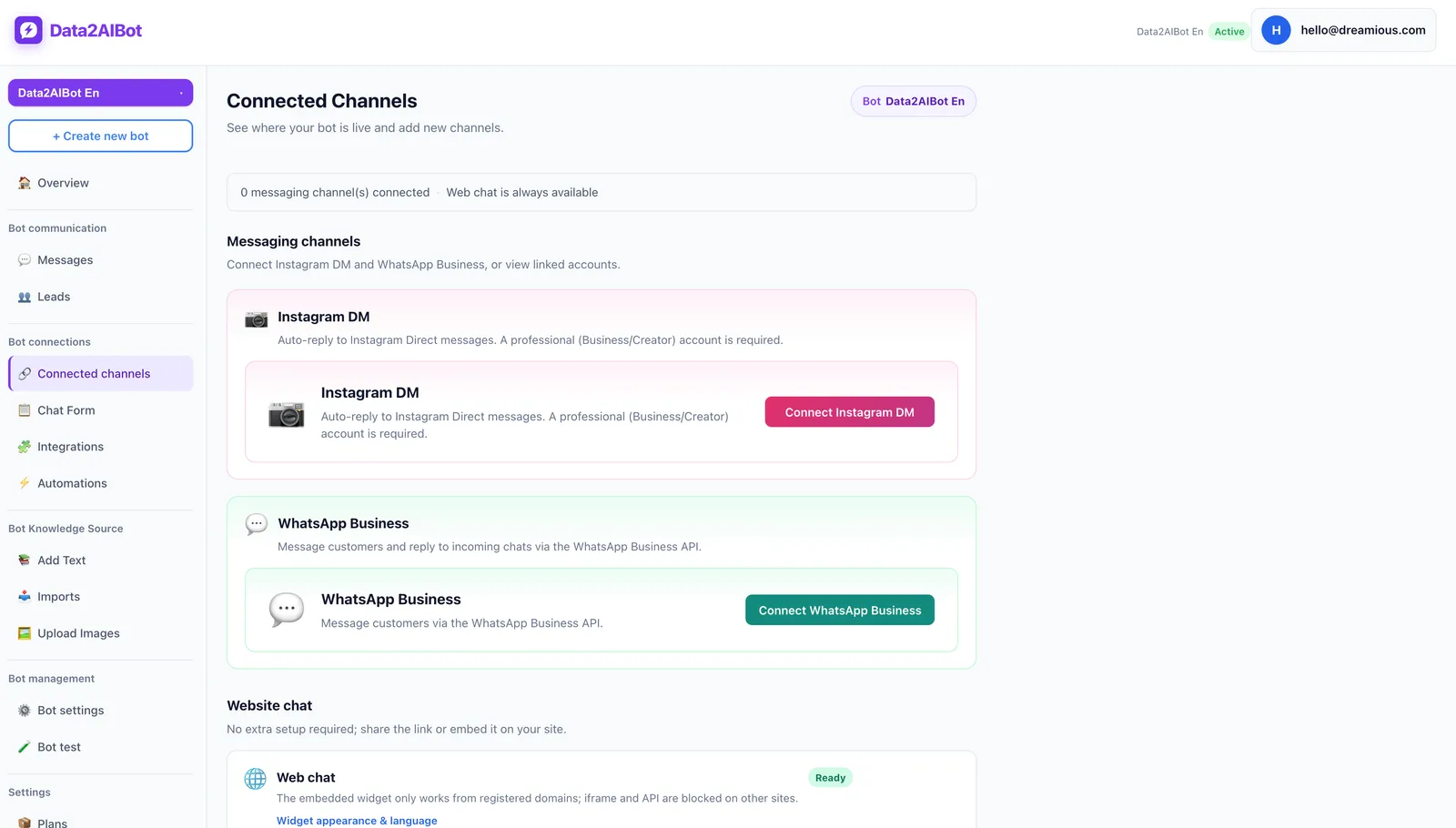
Data2AIBot is an official Meta Technology Provider, which is relevant when evaluating the provider and channel connection. You still need the correct account access and permissions. Provider status does not replace Meta’s messaging rules or your authorization responsibilities.
One Data2AIBot bot can handle Instagram and WhatsApp together through a unified inbox. For a first rollout, validating Instagram before adding another channel can make troubleshooting simpler. The Instagram AI chatbot page provides an overview of the channel offering.
Step 3: Add the information the bot should use
Prepare a concise, current FAQ document. Exclude expired promotions, conflicting prices, and unnecessary personal information.
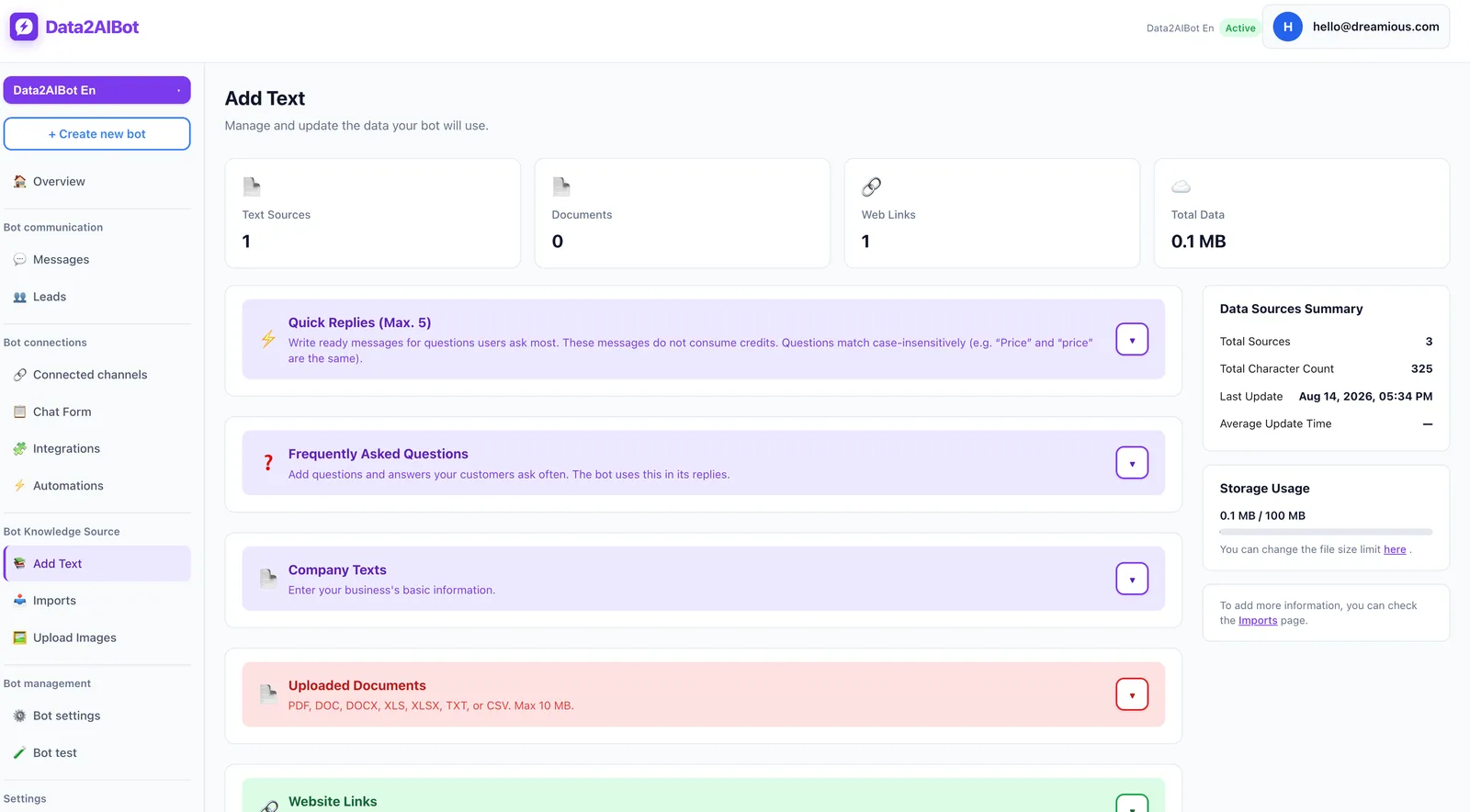
Data2AIBot supports file uploads for training and imports from Google Docs and Google Sheets. Ecommerce catalogs can also use spreadsheet column mapping.
Start with:
- Product or service names and descriptions.
- Verified delivery and return terms.
- Actual opening hours and contact information.
- Information needed for appointment inquiries.
- Exceptions that require a team member’s judgment.
Do not assume importing a spreadsheet creates a live inventory or pricing feed. Verify how current the source is before relying on its answers. Assigning a content owner and review date to each document helps your team maintain reliable information.
Step 4: Validate responses before expanding
Data2AIBot offers no-code setup to connect Instagram and WhatsApp in a few steps and launch in minutes. Content review still deserves separate time: a successful connection is not proof that every answer is correct.
Send your five most common questions. Repeat them with typos, short wording, and two topics combined. When an answer is incomplete, check the underlying information instead of treating it only as a conversation problem.
For appointment use cases, Data2AIBot can collect appointment and reservation requests in chat, and a Calendly automation is available. Keep “request received” separate from “booking confirmed.” Your process should not promise an appointment until it is actually confirmed.
Example conversations: One inbox, three approaches
These are illustrative scenarios, not guarantees of product behavior or statements about a real business’s policies.
Saved reply: A person sends the answer
Customer: “Where is your store?”
Team member selects stored text: “Hi! Our current address and directions are: [insert verified location details].”
The benefit is faster typing with an opportunity to edit. If nobody opens the conversation, however, the saved reply does not send itself.
Built-in automation: The message is acknowledged
Customer: “Does this come in another size?”
Automatic welcome: “Thanks for your message! Please share the product name so we can help.”
The customer receives acknowledgment, but the sizing question remains unanswered. Measure this as an initial response, not a resolved inquiry.
AI chatbot: The answer uses supplied information
Customer: “How do I start a return?”
Target behavior: The bot explains the starting steps in the current return policy. If the situation involves an exception, it should avoid making a final decision and indicate that team review is needed.
The standard is source accuracy, not polished wording. A confident but incorrect answer can create more work than an honest acknowledgment.
Run a 10-minute pre-launch test
Use an account other than the one administering the business where possible. Record each question, expected behavior, actual response, and required correction.
- First message: Does a welcome arrive? Do two systems respond?
- Follow-up: Does the welcome repeat unnecessarily?
- Known question: Does the delivery or address answer match the source?
- Unknown question: Does the response acknowledge missing information rather than invent details?
- Outside business hours: Does the schedule behave as intended?
- Sensitive issue: Is your team’s follow-up process clear for complaints or unusual requests?
- Privacy: Does the conversation request unnecessary payment or identity information?
During the first week, look beyond response speed. Review a sample of conversations for correct answers, repeated questions, and messages that require staff correction. The useful outcome is a customer reaching the right next step—not simply receiving more messages.
Troubleshoot Instagram auto-reply problems
Nothing sends: Check the connected account, messaging permissions, enabled status, and channel selection. If you only created a saved reply, remember that automatic sending is not part of that workflow.
Two replies arrive: Check whether Meta Business Suite and the connected chatbot both respond to the opening message. Assign the welcome to one system.
Messages arrive at the wrong time: Review the time zone, weekly schedule, and any holiday changes your team needs to make.
The answer is outdated: Remove conflicting source material. Old promotion text and a newer policy document may provide different instructions.
Only some conversations receive replies: Review the selected trigger and Meta’s current messaging requirements. Setting up auto-reply does not authorize unlimited or unsolicited promotional messaging.
Frequently asked questions
Is Instagram auto-reply free?
You can begin with the built-in messaging tools available to your Instagram account and Meta Business Suite workspace. Third-party terms vary. Data2AIBot offers a 14-day free trial without a credit card; that is a trial, not a claim of permanently free service.
Do Instagram saved replies send automatically?
Generally, no. Saved replies store text that you select and send within a conversation. Responding automatically when a DM arrives requires a separate automation or chatbot workflow.
Can I set up auto-reply on a personal Instagram account?
The professional messaging tools covered here may require a professional account and relevant connections. If an option is missing, check your account type and the current requirements of the tool you intend to use.
How do I set an Instagram away message?
Open Inbox and the automation settings in Meta Business Suite. If available, select the away-message option, include Instagram, and check the schedule. Test from another account before treating the configuration as complete.
Why doesn’t Instagram auto-reply answer every message?
A welcome automation may not be intended to respond to every message. Trigger conditions, channel settings, permissions, and platform rules affect behavior. First confirm exactly when the selected automation is supposed to run.
Can an AI chatbot give incorrect Instagram DM answers?
Yes. Outdated documents, conflicting sources, and missing context increase that risk. Begin with a narrow scope, deliberately test questions outside the knowledge provided, and retain team review for decisions that require judgment.
The right starting point is not the largest automation setup. Use saved replies for repeated wording, welcome messages for expectations, and AI backed by verified information for varied questions. Improve the workflow using real conversations.
Get started with Data2AIBot
You can sign up for Data2AIBot completely free — no credit card required — and connect Instagram and WhatsApp in minutes.