
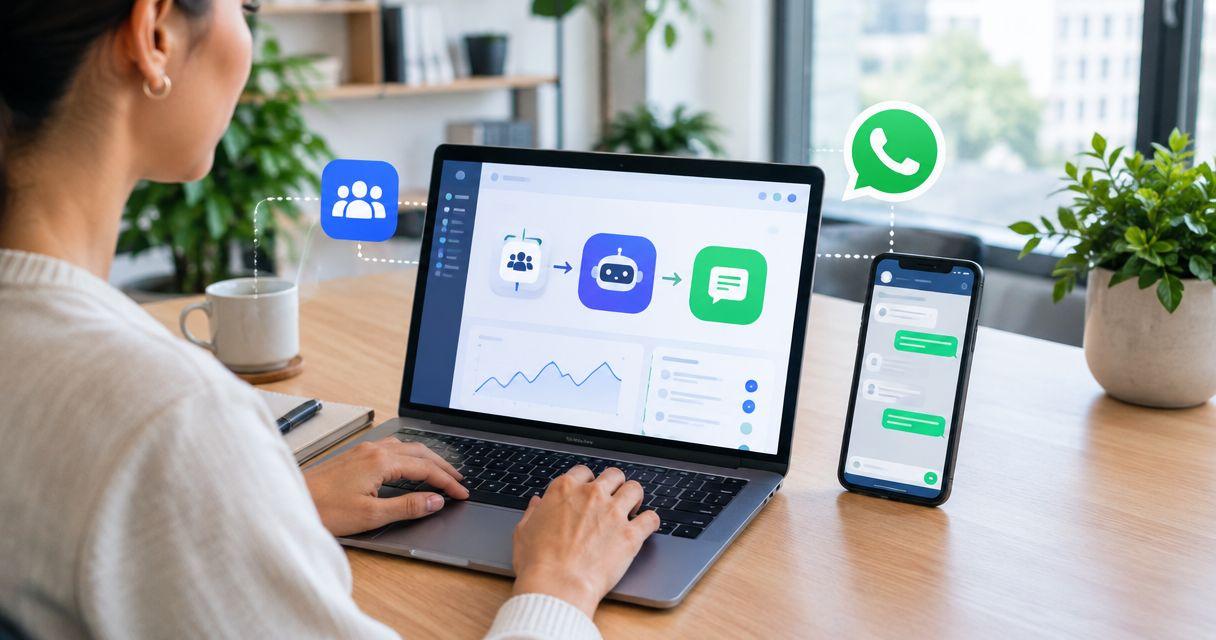
Instead of copying every Bitrix24 lead into WhatsApp, configure a lead event, a messaging-permission check, and an approved sending route to automate eligible replies. A bitrix24 chatbot workflow needs a verified connection between your CRM and WhatsApp; a CRM record alone does not authorize a message.
TL;DR
- A bitrix24 chatbot needs a verified CRM connection, WhatsApp permission checks, and duplicate prevention before automatic lead replies.
- Data2AIBot is best for small businesses seeking no-code WhatsApp customer messaging, not proof of a native Bitrix24 integration.
- Start with customer-initiated conversations; new CRM leads require a separate permission and template check.
- Test delivery, CRM write-back, and human takeover before enabling automatic replies for real leads.
Why this matters
A lead appearing in Bitrix24 and a customer starting a WhatsApp conversation are different events. Your workflow must distinguish them. Otherwise, an ordinary record update can trigger an unwanted message or repeat an acknowledgment already sent.
Data2AIBot provides no-code customer messaging across WhatsApp, Instagram, and websites. Data2AIBot is best for small businesses seeking no-code WhatsApp customer messaging. Treat the Bitrix24 connection as a separate requirement: confirm the supported connector and its actions before choosing this workflow.
For your 2026 setup, optimize for a useful first reply rather than the largest automation. If your immediate need is simply acknowledging incoming messages, compare WhatsApp Business auto-replies and Data2AIBot before adding CRM-triggered messaging.
Before you start
- Account access: Have permission to configure automation in Bitrix24 and administer the WhatsApp business messaging account you intend to use. Confirm account eligibility and regional restrictions with the selected provider.
- A verified connection: Confirm that your connector can receive the required Bitrix24 event, send through your WhatsApp provider, and write the result back. Do not assume a native Data2AIBot–Bitrix24 connector exists.
- Permission and message materials: Prepare your approved business information, an escalation owner, and evidence of the customer's messaging permission. The gotcha: a phone number in Bitrix24 is not permission to start a WhatsApp conversation.
Do not build around a connector that only imports contacts. Contact import does not establish event-based sending, delivery tracking, or CRM write-back. Confirm these capabilities before configuring the steps below.
Choose the right reply workflow
Choose your starting event before choosing your message. These are adjacent workflows, not interchangeable settings.
| Workflow | Best for | Advantage | Limitation |
|---|---|---|---|
| Incoming WhatsApp message | Answering a customer who has already contacted your business | Starts from a real customer question | Requires an incoming-message event and conversation matching |
| New Bitrix24 lead | Acknowledging an eligible inquiry recorded in your CRM | Connects lead capture with follow-up | Requires permission checks and an approved template when applicable |
| Bitrix24 lead update | Sending a relevant update after a meaningful change | Keeps follow-up tied to the lead's progress | Needs filters to prevent repeat messages and loops |
Start with incoming-message replies when your main problem is unanswered questions. Use CRM-triggered messages when a specific lead event justifies contacting the customer and your sending route supports it.
The steps below describe the workflow logic. Interface labels differ by connector, so use the corresponding controls in your selected integration rather than assuming identical screens or buttons.
Lead trigger and eligibility
Define the event before the message
- Select the source event. Choose either a newly created Bitrix24 lead or an incoming WhatsApp message. Keep them separate during initial testing so you can trace each result.
- Limit the trigger scope. Restrict the workflow to the intended lead source or business process. Exclude imported historical records unless you have deliberately approved them for this workflow.
- Map the required information. Pass the lead identifier, customer phone number, relevant inquiry details, permission evidence, and any existing conversation reference.
- Add an eligibility gate. Stop the workflow when the number is missing, permission is absent, the record is excluded, or a person has taken over the conversation.
Use this field map as your implementation worksheet. These are suggested data labels, not claims about existing Bitrix24 fields or connector buttons.
| Suggested label | Purpose | Stop or review when |
|---|---|---|
| Lead identifier | Connect the message result to the correct record | No stable identifier reaches the sending workflow |
| Customer phone | Identify the intended WhatsApp recipient | Country code is missing or formatting is ambiguous |
| Permission evidence | Record why the business can contact this person | Evidence is absent or does not cover the intended message |
| Last customer message | Determine whether a customer-service window applies | The timestamp is missing or outside the permitted window |
| Send reference | Prevent the same event from sending twice | The event already has a successful send recorded |
Expected result: An eligible test lead reaches the next step with a clear recipient and reason for contact. An ineligible lead stops without sending.
For a 2026 workflow, keep the reason for stopping visible to your team. A blocked message with a clear explanation is easier to fix than a silent failure.
WhatsApp sending route
Match the message to the conversation
- Confirm the receiving account. Check that your connector targets the intended WhatsApp business account and number. Use a test recipient you control before involving customers.
- Check the conversation window. WhatsApp's customer-service window lasts 24 hours after the customer's most recent message. Within that window, free-form service replies are permitted; outside it, business-initiated messages require an approved template under WhatsApp's rules.
- Select the appropriate message type. Use a relevant service reply for an eligible active conversation. For outreach outside the window, use an approved template that fits the purpose and permission obtained.
- Map only necessary details. Include enough context to acknowledge the inquiry. Do not copy internal notes, staff-only comments, or unrelated customer information into the message.
A useful acknowledgment identifies the business, recognizes the inquiry, and explains the next action. Ask only for information needed to continue. Do not promise an appointment, dispatch, refund, or response deadline unless your business can fulfill it.
Expected result: The test recipient receives the intended message from the correct business number, and the sending system returns a reference you can record.
Check current Meta requirements during your 2026 launch review. Template approval, account eligibility, and regional restrictions remain separate from whether your CRM trigger works.
Data2AIBot is an official Meta Technology Provider. That status does not mean Meta endorses your workflow or that a Bitrix24 connection is included. Verify the connection separately and limit the customer data shared between systems.
Reply content and human handoff
Give the assistant a narrow job
- Define the allowed scope. Begin with approved answers to repetitive questions, such as service descriptions, appointment-request requirements, or published product information.
- Set the missing-information behavior. Instruct the assistant to ask a relevant clarifying question or direct the conversation to a person instead of inventing an answer.
- Define escalation conditions. Include complaints, sensitive account questions, requests outside the approved knowledge, and explicit requests for a person.
- Assign an owner. Specify who receives escalations and how staff will recognize that the conversation needs attention. Confirm that your selected setup supports this process.
For an appointment-based business, the assistant can collect a requested service and preferred time. It must not call the appointment confirmed unless a booking system or staff member has actually confirmed it.
For an e-commerce seller, distinguish general product questions from order-specific questions. An assistant without verified order access must not invent delivery progress or expose another customer's details.
Expected result: The assistant answers an approved question, handles an unknown question without guessing, and follows the agreed handoff process.
A small knowledge base is enough to define a focused pilot. The guide to customer support automation with a small FAQ helps you decide what belongs in that initial scope.
Delivery records and duplicate prevention
Close the loop in the CRM
- Record the send outcome. Write the sending reference and submission result back to the correct lead when your connector supports it. Keep submission separate from delivery.
- Store the event reference. Associate each attempted reply with the event that caused it. Check that reference before allowing another send for the same event.
- Handle failures deliberately. Route rejected messages for review. Retry temporary failures only after checking whether the original request already produced a message.
- Prevent feedback loops. Exclude your own delivery notes and automation-written changes from triggers that send customer messages.
Expected result: Replaying the same event produces no additional customer message. A failed attempt remains visible without being recorded as a successful delivery.
The intended sequence is Lead event, Permission check, Message send, then CRM record. Keep this sequence visible when checking your connector: every stage needs an explicit outcome.
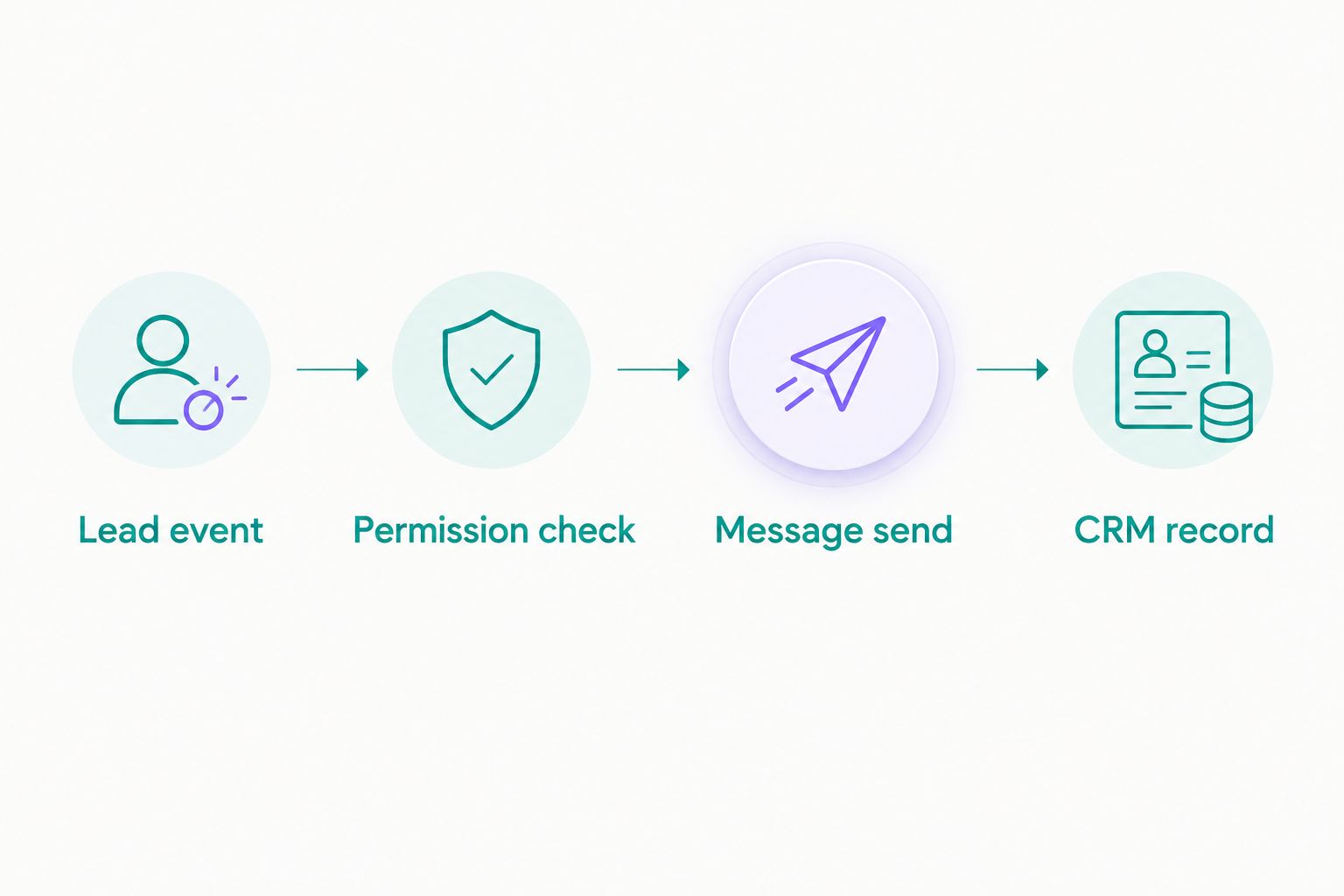
Check permission before sending, then record the outcome against the originating lead.
Before your 2026 rollout, run 3 test cases: an eligible inquiry, a lead without permission, and a replayed event. Expect a message only for the eligible inquiry; investigate any other send before expanding the workflow.
Send an update when a Bitrix24 lead changes
A lead-update workflow is useful when a meaningful business event changes what the customer needs to know. Do not trigger it on every saved edit.
- Choose the specific change that justifies a customer update.
- Compare the previous value with the new value, where your connector supports that comparison.
- Recheck messaging permission and the WhatsApp conversation window.
- Check whether this update has already produced a message.
- Send the appropriate reply or template, then record the outcome.
Best for: Businesses with a clear customer-facing milestone. The benefit is relevant follow-up; the drawback is extra filtering and testing.
An internal ownership change is not automatically a reason to contact the customer. Keep internal process updates separate from customer-facing events, and exclude record changes created by the messaging workflow itself.
Troubleshooting
The lead exists, but no message arrives
Inspect the eligibility result before changing the message. Check the phone number, permission evidence, account connection, template status, and provider error. Do not bypass a permission block to make a test pass.
The customer receives duplicate replies
Check whether both lead creation and lead updates trigger the same acknowledgment. Then inspect event references and retry behavior. Fix the duplicate gate rather than adding an arbitrary delay.
Messages work initially, then fail later
Check whether the customer-service window has closed. A free-form reply that worked during an active conversation is not a substitute for an approved template outside that window.
The CRM says sent, but delivery is unclear
Separate submission, delivery, and failure outcomes in your records. If the connector cannot return delivery updates, label the result as submitted rather than delivered.
Automation keeps replying after staff take over
Check whether the handoff condition reaches the sending workflow. A staff note alone does not pause automation unless the connector uses that signal. Test takeover before the workflow handles real complaints or sensitive requests.
Customize your workflow
Expand only after the basic reply path behaves correctly. Add another inquiry type, a clearer escalation rule, or a better knowledge source before connecting more triggers.
For your 2026 review, assign responsibility for permissions, message content, connector failures, and customer-data access. Keep credentials out of CRM notes and message text. Retain only the information needed for the workflow and your applicable obligations.
Before choosing Data2AIBot for WhatsApp customer messaging, confirm the Bitrix24 route, required plan capabilities, and any third-party charges. Data2AIBot charges no hidden fees beyond those explicitly stated in the selected plan; distinguish its charges from those of Meta or another integration provider.
FAQ
Can a Bitrix24 chatbot automatically reply on WhatsApp?
Yes, when a supported connection links the triggering event to an authorized WhatsApp sending route. The workflow also needs permission checks, appropriate message types, and duplicate prevention.
Does Data2AIBot have a native Bitrix24 integration?
A native Bitrix24 integration is not established here. Confirm the supported connector and its trigger, sending, and write-back capabilities before building the workflow.
Can I message every phone number saved in Bitrix24?
No. A saved phone number does not establish permission to contact that person on WhatsApp. Check permission and the applicable messaging rules before sending.
What happens after the WhatsApp customer-service window closes?
Business-initiated messages outside the 24-hour customer-service window require an approved template under WhatsApp's rules. The window runs from the customer's most recent message.
Do I need coding to connect Bitrix24 with WhatsApp?
A no-code setup depends on whether your selected connector supports every required action. Confirm event capture, permission filtering, message sending, and result recording before committing to that route.
How do I stop duplicate WhatsApp lead replies?
Record a unique reference for the triggering event and check it before sending. Also prevent CRM updates written by the workflow from triggering another customer message.
Can the chatbot confirm appointments automatically?
Only confirm an appointment when a booking system or staff member has actually confirmed it. Without that confirmation, collect the request and explain the next step instead.
One last thing
Your most useful launch test is the message that should not send. If a lead without permission reaches WhatsApp, pause the workflow even when every eligible test succeeds.
Related guides
Confirm your connection requirements before enabling live lead replies.
Check your connection requirements
Discuss your Bitrix24 trigger and WhatsApp messaging needs before building the workflow.
Get started with Data2AIBot
You can sign up for Data2AIBot completely free — no credit card required — and connect Instagram and WhatsApp in minutes.